
Manual · 5
Graphics editor
The graphics editor draws with the TIA's own pieces: two players, two missiles, a ball and the playfield. What you see is what the kernel will show, and saving writes the tables your program includes.
Create a graphics file with File → New graphics... A .vcsgfx file is JSON whose rows are written with X and ., so it reads like a drawing and compares well in version control. One file can hold several sprites and playfields.
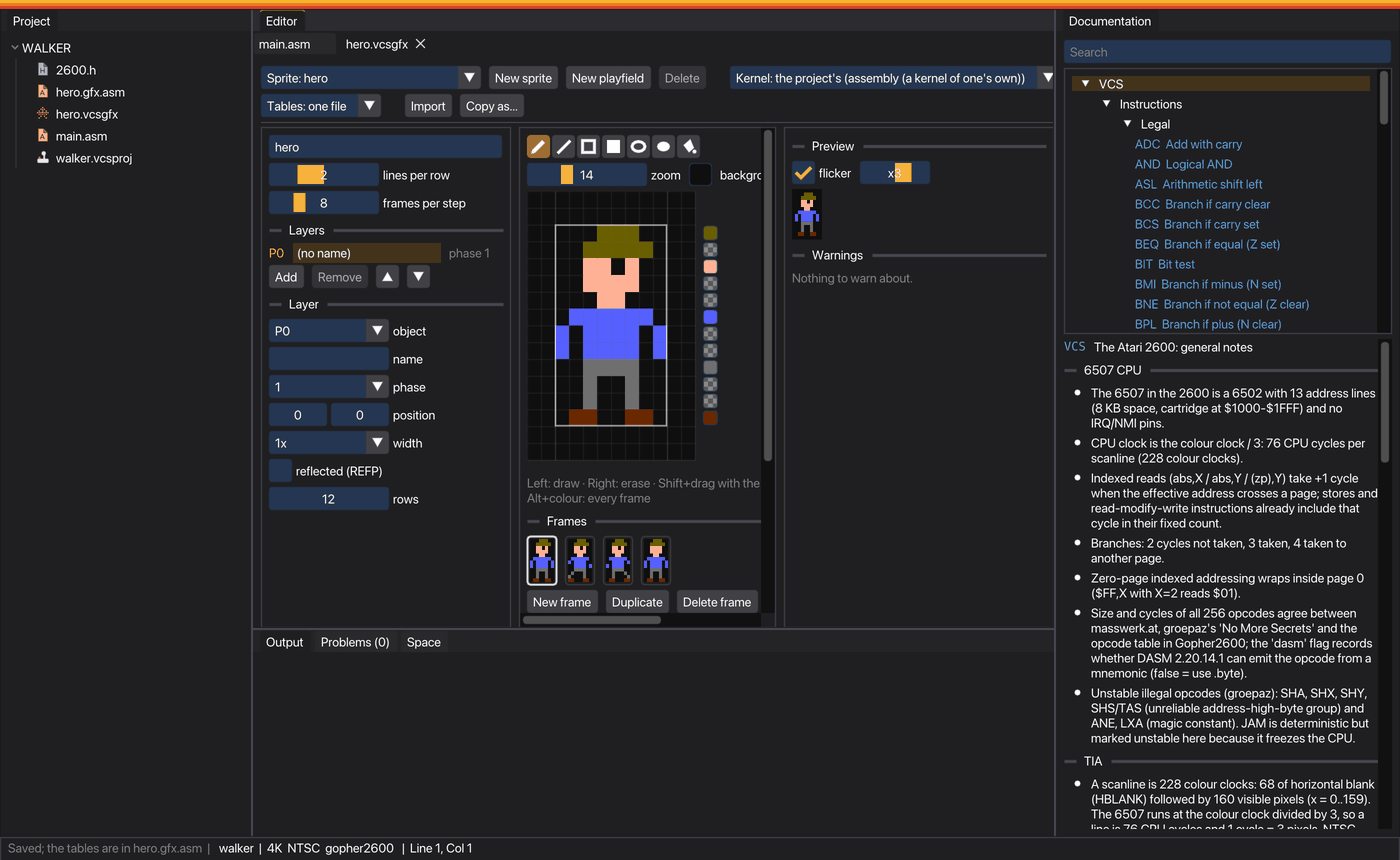
Sprites as layers
A sprite is made of layers, and each layer is one of the TIA's movable objects: P0, P1, M0, M1 or BL. Each layer has:
- its position, in colour clocks across and rows down;
- its width: NUSIZ for players, and 1, 2, 4 or 8 for missiles and the ball;
- its reflection (REFP);
- a colour for each row and frame.
A multicolour character can be P0 and P1 on top of each other, with a missile as its sword. On the canvas, the left button draws, the right one erases, and Alt+click on a colour applies it to every frame.
The drawing tools each have a key: pencil (P), line (L), rectangle (R, filled with Shift+R), ellipse (E, filled with Shift+E) and fill (F). Shift+drag with the pencil moves the whole layer. The canvas can show the sprite on a background colour of your choice; it is only for drawing, since the program sets its own COLUBK.
Flicker phases
Each layer has a phase, 1 to 4. Layers in the same phase are drawn in the same video frames, and the phases take turns. That's how a game shows more objects than the TIA has: an object can be used again in another phase, but never twice in the same one. The preview alternates the phases at the TV's rate, or shows them all at once.
Drawn like the TIA
The canvas and the preview follow the hardware:
- priorities: P0 and M0 over P1 and M1, over the ball and the playfield;
- each missile takes its player's colour on that line;
- proportions close to a TV's, where a colour clock is wider than a line is tall;
- NTSC and PAL palettes worked out from each standard's hues and luminances, and SECAM's eight fixed colours. They are close; the emulator shows the exact ones.
Playfields
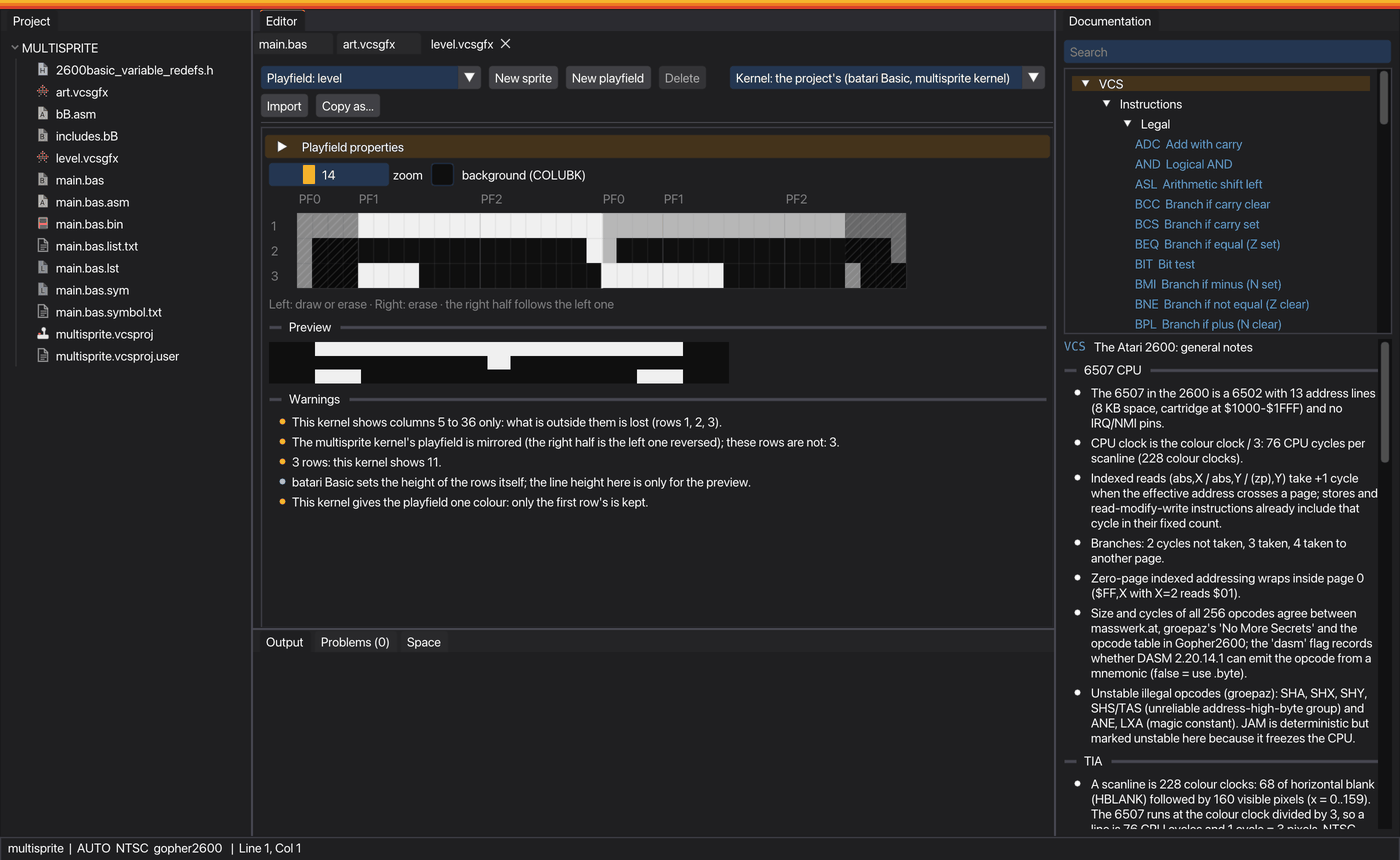
A playfield has 40 columns, and every row has its own:
- mode: mirrored or repeated, the bit 0 of
CTRLPF; - playfield and background colours;
- right half, if you draw one: an asymmetric row, where the program rewrites the registers in the middle of the line.
So a playfield can change mode, colour or drawing halfway down the screen and halfway across a line. Press M or R on a row for mirror or repeat, and A to make it asymmetric.
Kernel profiles
A kernel is the code that draws the screen, and each one can show different things. Every graphics file knows which kernel will draw it: a kernel of your own in assembly or C, which can use all of the TIA, or one of batari Basic's. By default it is the project's: your own for assembly and C, and for batari Basic the one the main program sets with set kernel, with its set kernel_options and const pfres. A file can choose another.
| Your own | bB standard | bB multisprite | bB DPC+ | bB PXE | |
|---|---|---|---|---|---|
| Players | P0, P1 | P0, P1 | P0-P5 | P0-P9 | P0-P16 |
| Missiles and ball | any shape | blocks; some kernel options remove M0 or M1 | one line high | blocks | blocks |
| Colour per row | all | P1 with player1colors, P0 with playercolors | no: one colour per player | players | players |
| Row order | top to bottom | bottom to top | bottom to top | top to bottom | top to bottom |
| Playfield | 40 columns, mode per row | 32 columns, asymmetric; 11 rows or pfres | 16 columns, mirrored | 32 columns | 32 columns |
| Playfield colour per row | playfield and background | with pfcolors | no | pfcolors: and bkcolors: | pfcolors: and bkcolors: |
The editor follows the kernel. It doesn't offer players the kernel doesn't have (the reason shows on hover), hides the row colours it can't change, hatches the playfield columns it doesn't show and mirrors the rows in multisprite.
Warnings
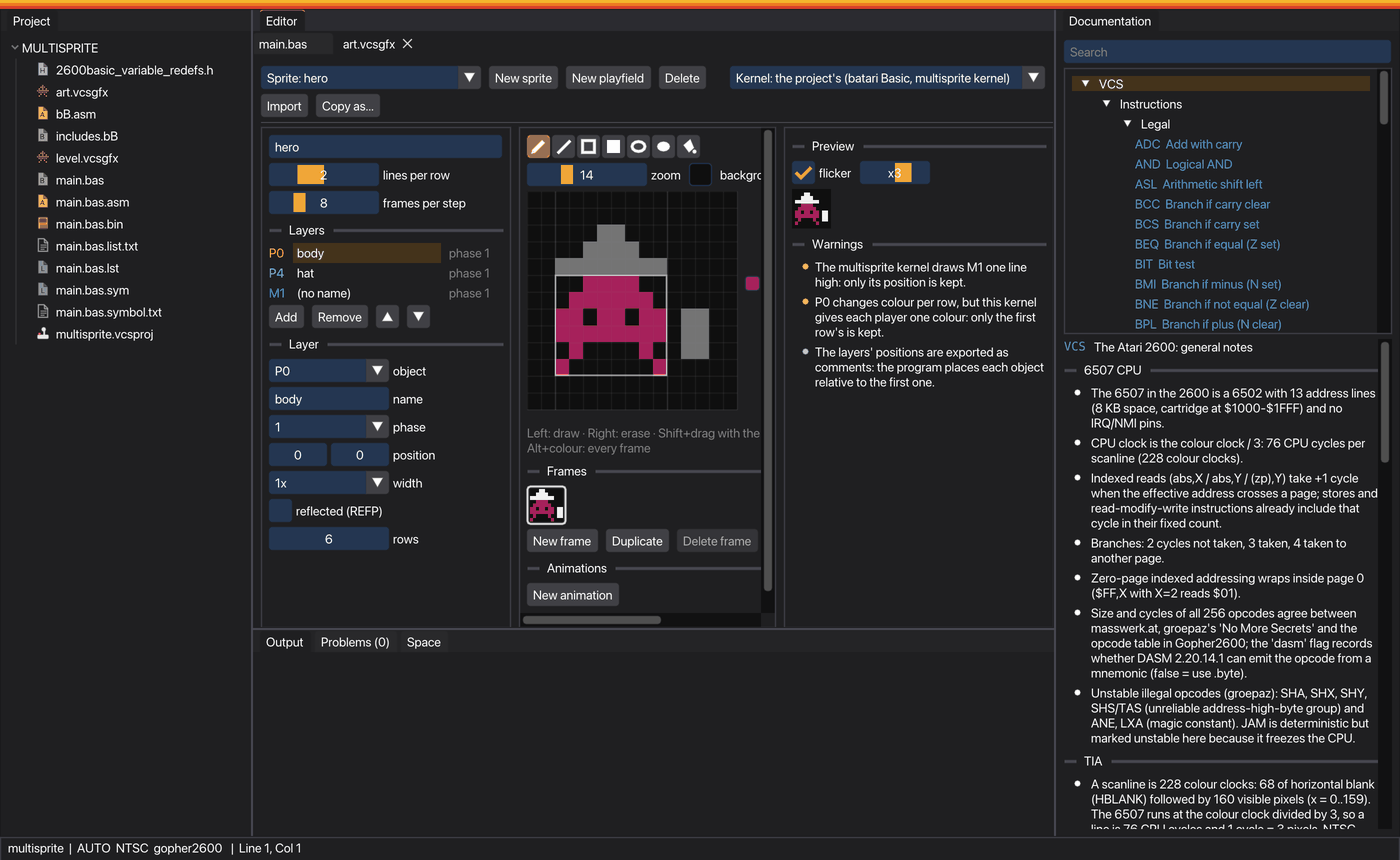
Below the preview, the editor warns about what will go wrong with this kernel:
- an object used twice in one phase, or one the kernel doesn't draw;
- flicker, and at what rate each phase is shown;
- extra players sharing lines, which the kernel will alternate;
- the colour that missiles and the ball share with other objects;
- in your own kernel, how many register writes each line will need, and how much time asymmetric rows leave;
- whatever a batari Basic kernel won't show: columns, the shape of missiles and ball, row colours without the option that enables them, the number of rows.
Animations
A sprite has frames and named animations. An animation is a list of steps, and each step shows a frame for a number of video frames. It loops or stops on its last step. The same frame can appear in several steps, with different durations (walking: 0-1-2-1). When you insert, delete or move frames, the steps follow them. The preview plays the animation you choose.
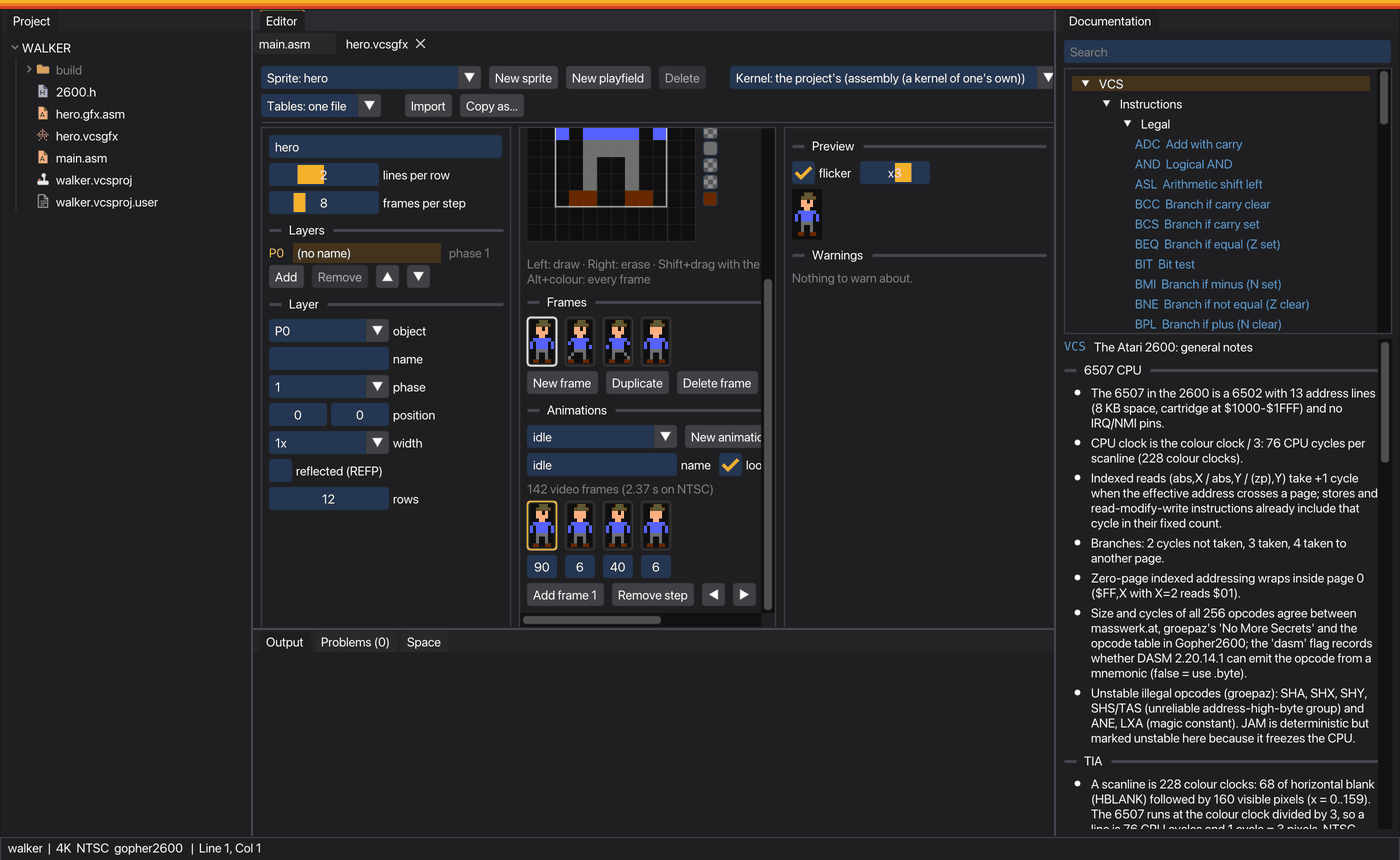
idle animation: four steps of 90, 6, 40 and 6 video frames, 2.37 s on NTSC.What saving writes
Saving the .vcsgfx writes a file next to it in the project's language, so the program always has the current drawing.
In assembly, the toolbar chooses how the tables are split: all in <name>.gfx.asm, one file per sprite and playfield (<name>.<item>.gfx.asm), or one per group (<name>.<group>.gfx.asm), where each item can be given a group. Files written by an earlier choice are removed.
Assembly: <name>.gfx.asm
Labelled tables (<sprite>_<object>_Frame<n>, _Colour<n>), positions and sizes as constants, and playfields as one table per register (with PF0R, PF1R and PF2R for right halves, and tables of CTRLPF and colours if they change). Rows go from bottom to top, as most kernels read them. Animations give tables of pointers to each frame (_FramePtrLo/Hi, _ColourPtrLo/Hi) and, for each animation, the frame and duration of every step:
hero_walk_STEPS = 4
hero_walk_LOOP = 1
hero_walk_FRAME
        .byte 1,0,2,0
hero_walk_TICKS
        .byte 7,7,7,7
The program keeps a counter and a step number, and reads the frame from there.
C for ELF: <name>.gfx.h
const uint8_t arrays per layer and frame, from top to bottom (the way a C loop draws lines), with #defines for position, height, phase, NUSIZ and REFP. Each animation is an array of {frame, duration} steps, played with two small functions:
#include "hero.gfx.h"

static vcsgfx_player hero;

void overblank(void) {
    vcsgfx_play(&hero, moving ? &hero_walk : &hero_idle);
    hero_frame = vcsgfx_animate(&hero);   // once per video frame
}
batari Basic: blocks in the program
batari Basic includes assembly but not its own code, so the blocks have to be inside the .bas. VCSIDE keeps them there. See graphics in a batari Basic program.
Copy and import
Copy as... puts the selected sprite or playfield on the clipboard as DASM tables, C arrays, or batari Basic blocks for its kernel (player0: to player16:, playerNcolor:, playfield: of 32 or 16 columns, pfcolors:, bkcolors:, the fixed colours as assignments, and DFnFRACINC for DPC+ and PXE).
Import reads from the clipboard:
- VCSIDE's own tables;
- PlayerPal's assembly tables, with each row's colour in the comment;
- batari Basic blocks, in the row order of their kernel;
- playfields from masswerk's Tiny VCS Playfield Editor, with their mode and line height.
So graphics can go back and forth between VCSIDE and those tools.
The examples
New project → Start from → Example: an animated sprite gives a character drawn in hero.vcsgfx with two animations, idle and walk. The joystick moves it, and it turns to face where it walks.
- In assembly, a two-line kernel reads the frame through the pointer tables and moves the animation on during vertical blank.
- In C, the kernel places the player with
RESP0andHMOVEat its exact position, from 0 to 159, and writesGRP0andCOLUP0on every line.